


Knowing which orders were paid
Until now
Compare the payment company’s dashboard with your order sheet, and mark paid orders by hand.
From now on
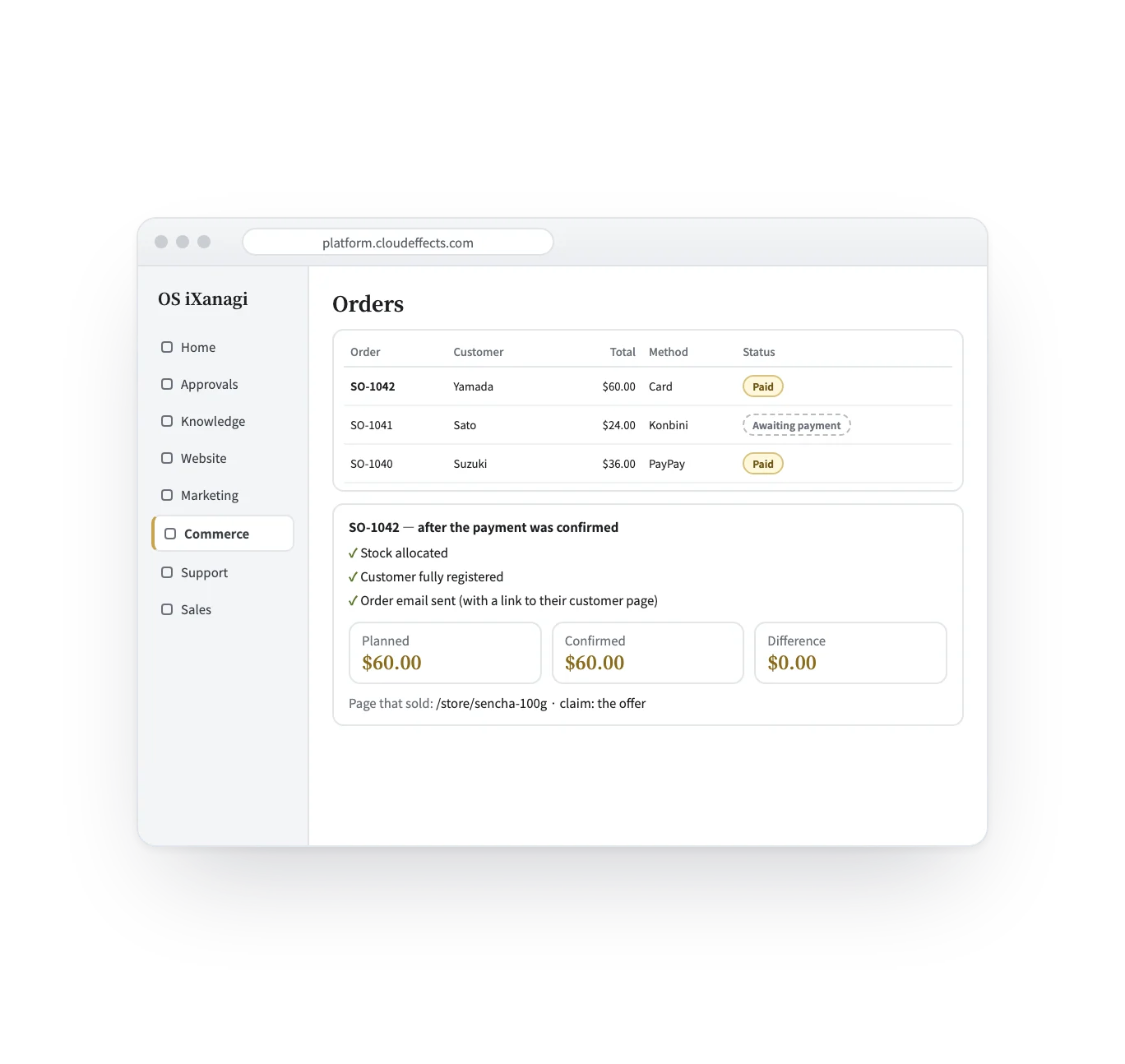
Stripe’s notice marks the order paid, and stock and customer records follow on their own.
Connector — Payments
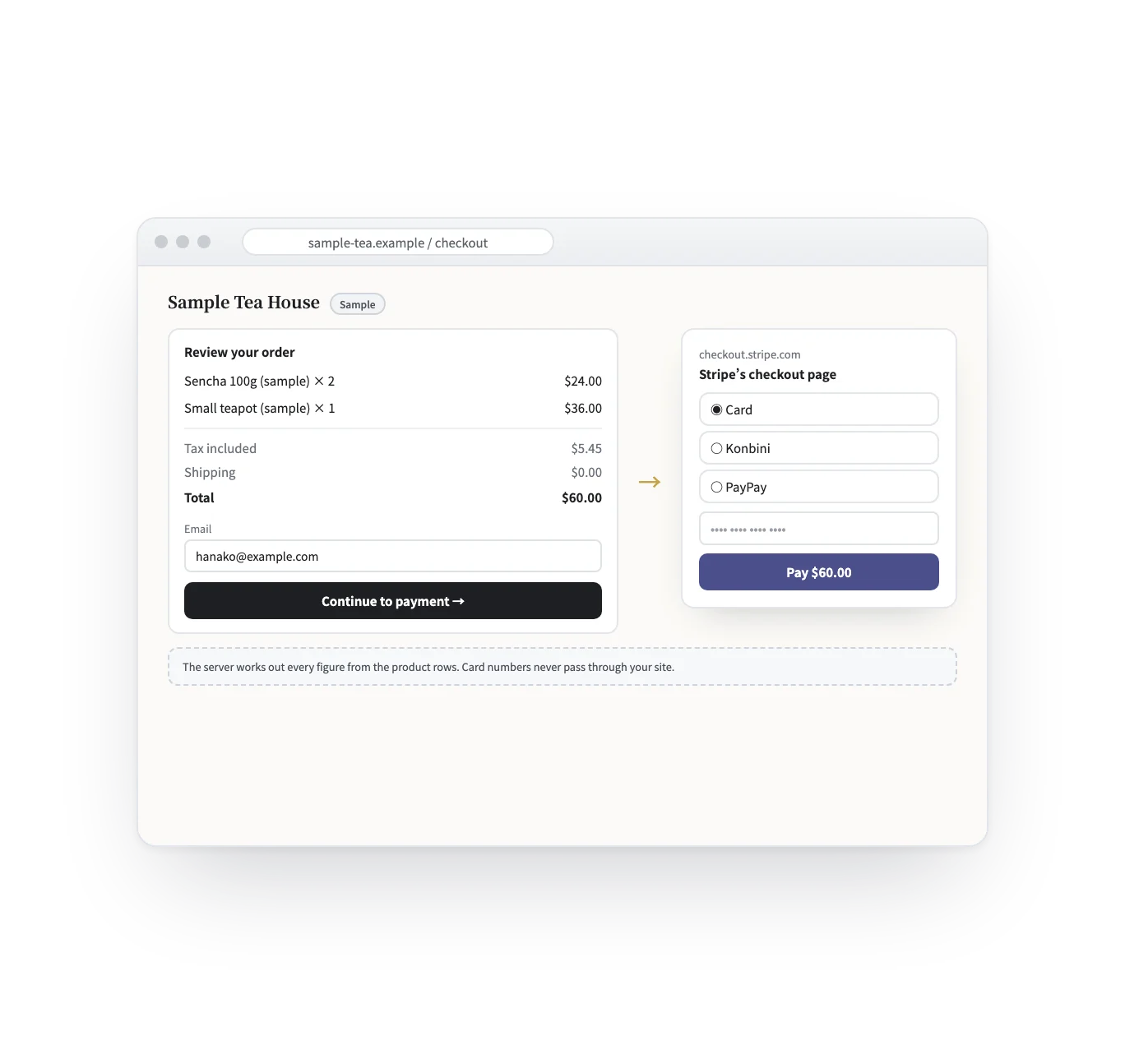
The payment connector is the line between your Stripe account and OS iXanagi. Customers review their order on your brand’s site and pay on Stripe’s checkout page. Once the payment is confirmed, the order is marked paid, and stock allocation, customer registration and the order email follow on their own.
Works
How it works
From connecting to an order marked paid, in five scenes. The screens are samples; the shops, people and amounts are examples.
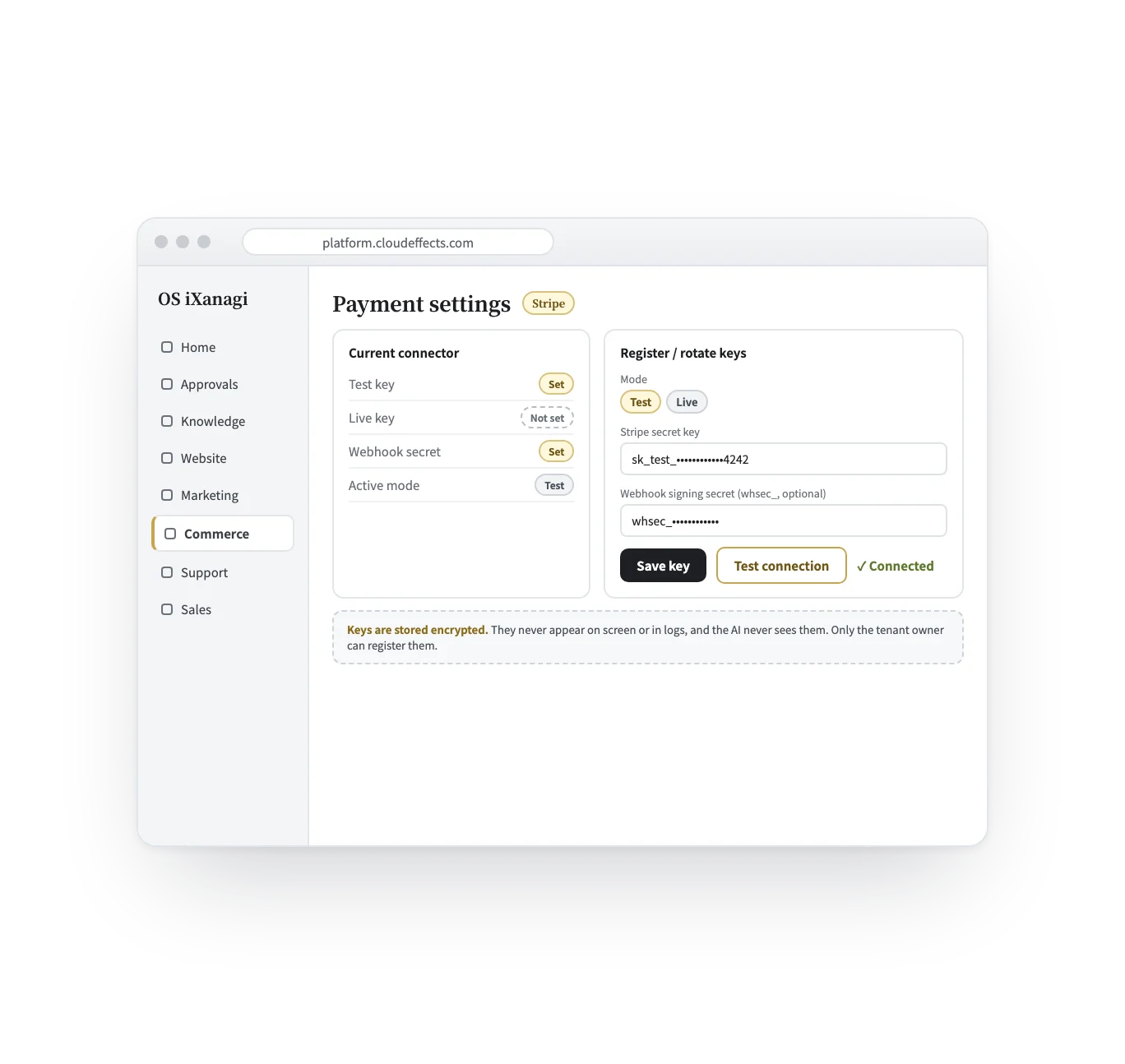
In the console’s Payment settings, enter your Stripe secret key and the webhook signing secret, then check them with “Test connection”. Test and live keys are kept apart, and you choose which one runs. A key whose prefix does not match the mode is not saved.
Who it suits
Products with stock are allocated as soon as they are paid for.
The right to download is granted once the payment is confirmed.
A recurring price starts as a Stripe subscription.
Payments from payment links and quotes go through the same line.
Payments
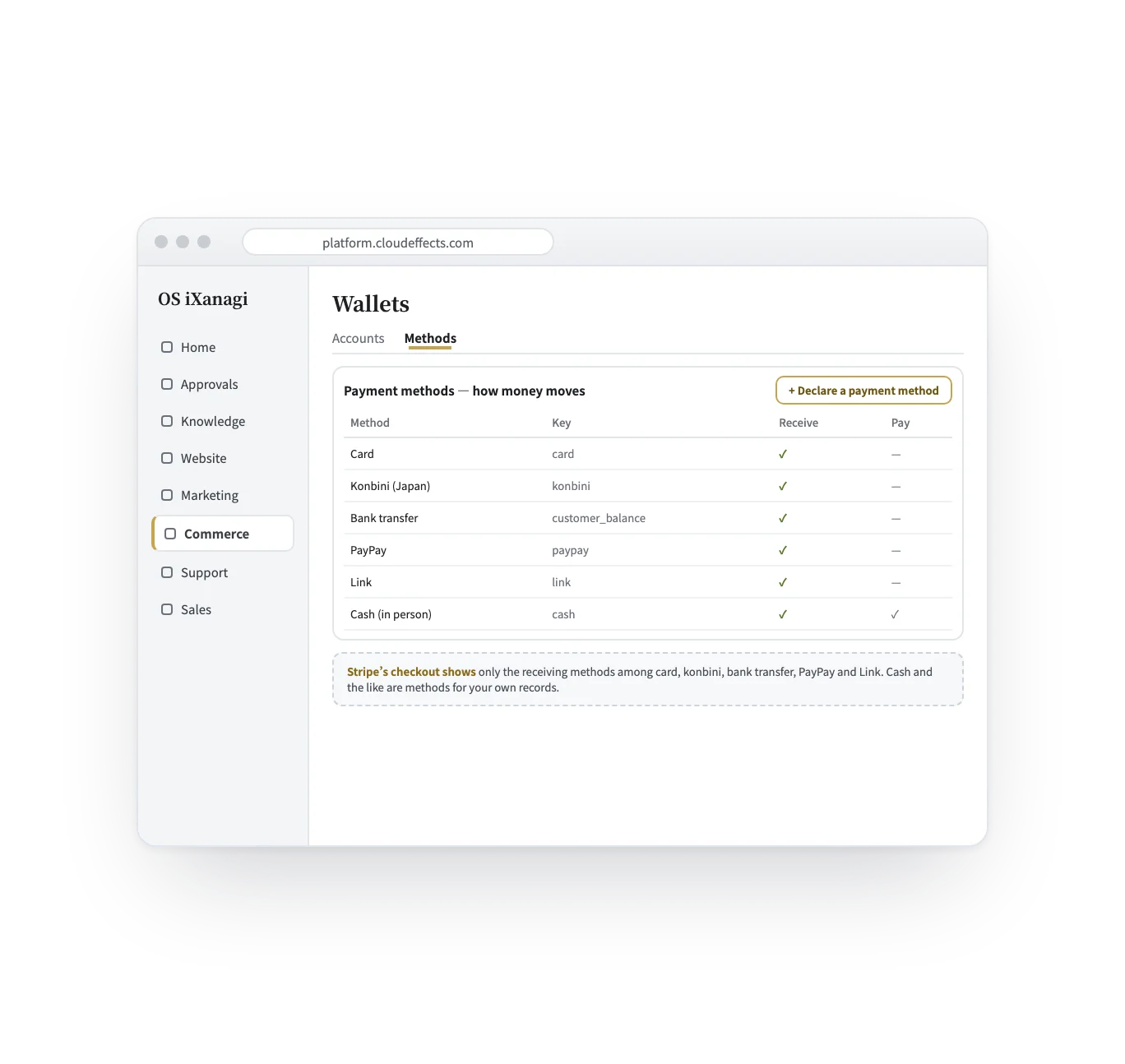
Payments run on Stripe. Which ways to pay appear is up to you: only the methods you declare are offered to the customer.
What it does
With the rest of OS iXanagi
The payment connector is not a separate tool. It uses the products, prices, site and customer records that are already in OS iXanagi.
Connector and add-on
Several pages talk about payments, and they describe different things. A connector connects; an add-on is activated. The payment connector is the line between your Stripe account and OS iXanagi — which keys, which ways to pay, and when an order counts as paid. Payment links and quotes are add-ons that run over that line, and subscriptions are a feature built into Commerce; all of them take their money through this one connector.
| Payment links and quotes (add-ons) | The payment connector | |
|---|---|---|
| In a word | Capabilities you activate over that line: asking for payment | The line that connects your Stripe account to OS iXanagi |
| What it decides | Which price to send, to whom, until when — or what to quote | Which keys, which ways to pay, and when an order counts as paid |
| How you start | Activate the add-on and send from Commerce | Register your Stripe keys under Payment settings in the console |
| Where it shows | Inside Commerce, alongside orders and customers | Behind every checkout: your store, payment links, quotes, subscriptions |
What changes
What it needs
Every App comes with the plan. Unless an App is activated, its capabilities cannot be used — from the screen or the API.
Payments run on Stripe only. Customers pay on Stripe’s checkout page, so card numbers reach neither your site nor OS iXanagi. Prices include tax by default; tax is worked out by the tax calculation, and when it cannot be, the order records that it could not be calculated rather than writing zero. Shipping is assumed to be included in the price. Refunds made in Stripe’s dashboard come back into the order’s records too.
FAQ
Stripe. You connect your own Stripe account, and the ways to pay shown to customers are the ones you declare.
Yes. Register a test key and check it with “Test connection”, then switch to your live key. Once live, real customers are charged.
When the money is confirmed. Until then the order waits for payment, and nothing is allocated.
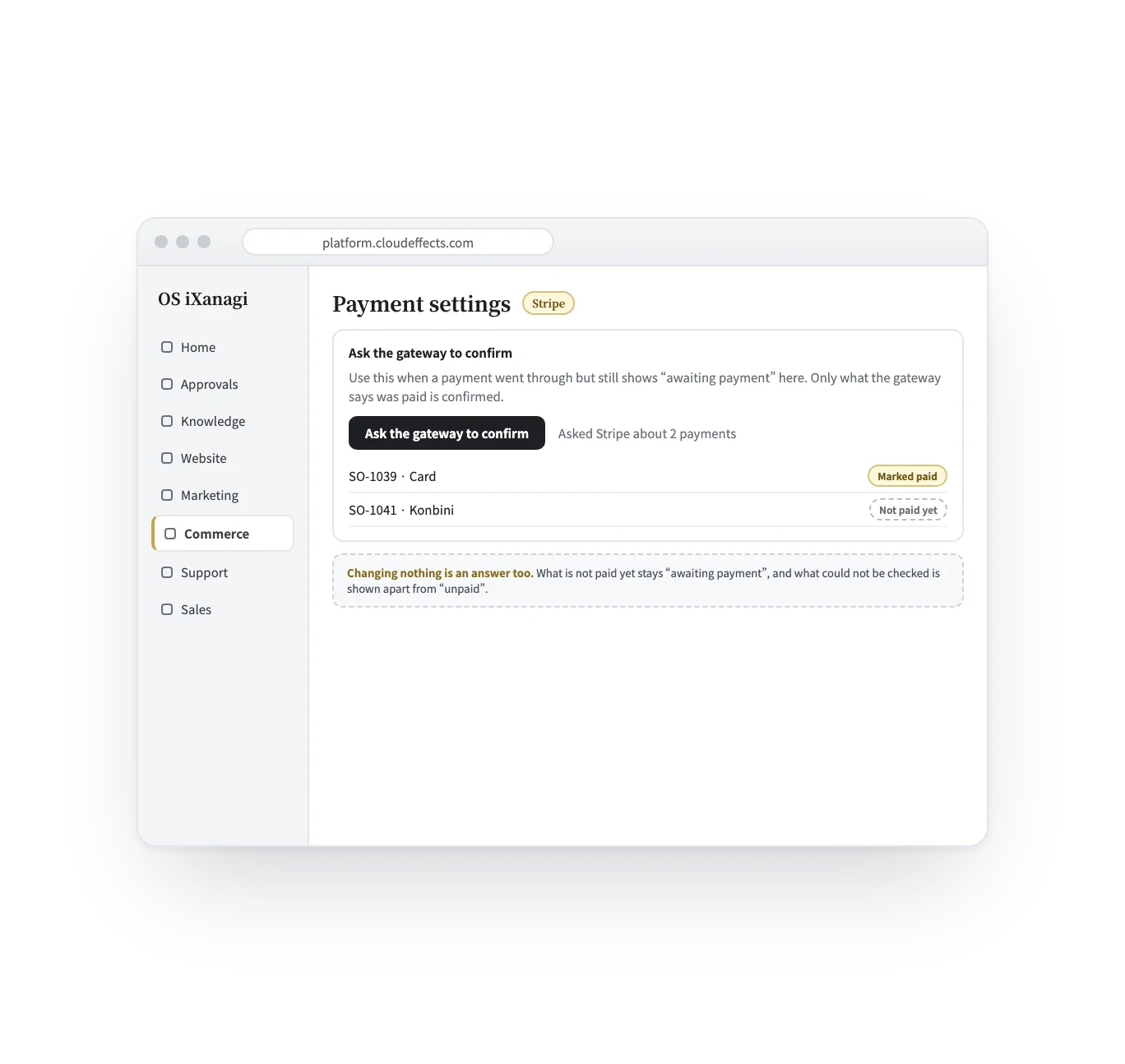
Use “Ask the gateway to confirm” in Payment settings. It asks Stripe and confirms only what Stripe says was paid.
The AI can propose a refund, and it goes through only after a person approves it; a refund larger than what was paid is refused. Refunds made in Stripe’s dashboard also come back into the order’s records.
Works well with
Curious? Ask the AI directly — it answers in terms of your business.