
Asking the AI about your own business
Paste the company description into the chat each time. Prices and wording drift from version to version.
The AI reads your knowledge itself. Fix one explanation in OS iXanagi and the next answer uses it.
Connector — Your own AI tools (MCP)
A way for AI tools that support MCP — Claude Code and others — to read your company’s knowledge. They connect through MCP, the common standard of the AI industry, with the standard sign-in and consent flow. It is read-only.
Works
How it flows
From your AI tool’s settings to revoking the permission, in five scenes. The screens are samples; the companies, questions and figures are examples.

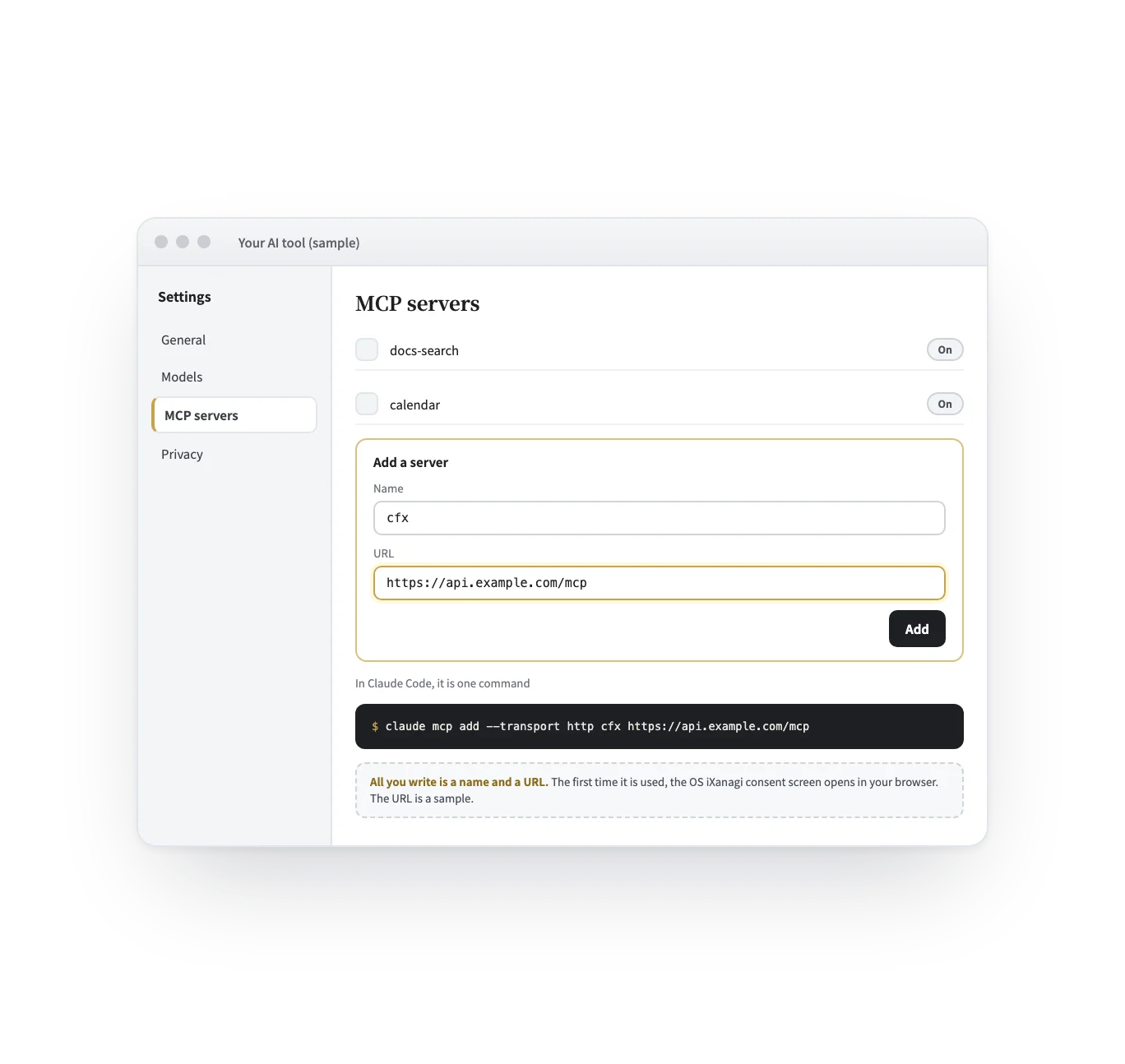
In your AI tool’s MCP settings, add a name and the URL of the OS iXanagi connection. In Claude Code it is one command. Nothing else is written — no program, no password. The tool, the URL and the other entries shown are samples.
First, MCP
MCP (Model Context Protocol) is a common standard for connecting AI tools to outside data and tools. Anthropic published it in 2024, and many of today’s major AI tools support it.
AI tools that support MCP
Major AI tools that support MCP. The one we have connected to OS iXanagi and checked is Claude Code (as of October 2026). Product names and logos are trademarks of their respective owners.
When you need it
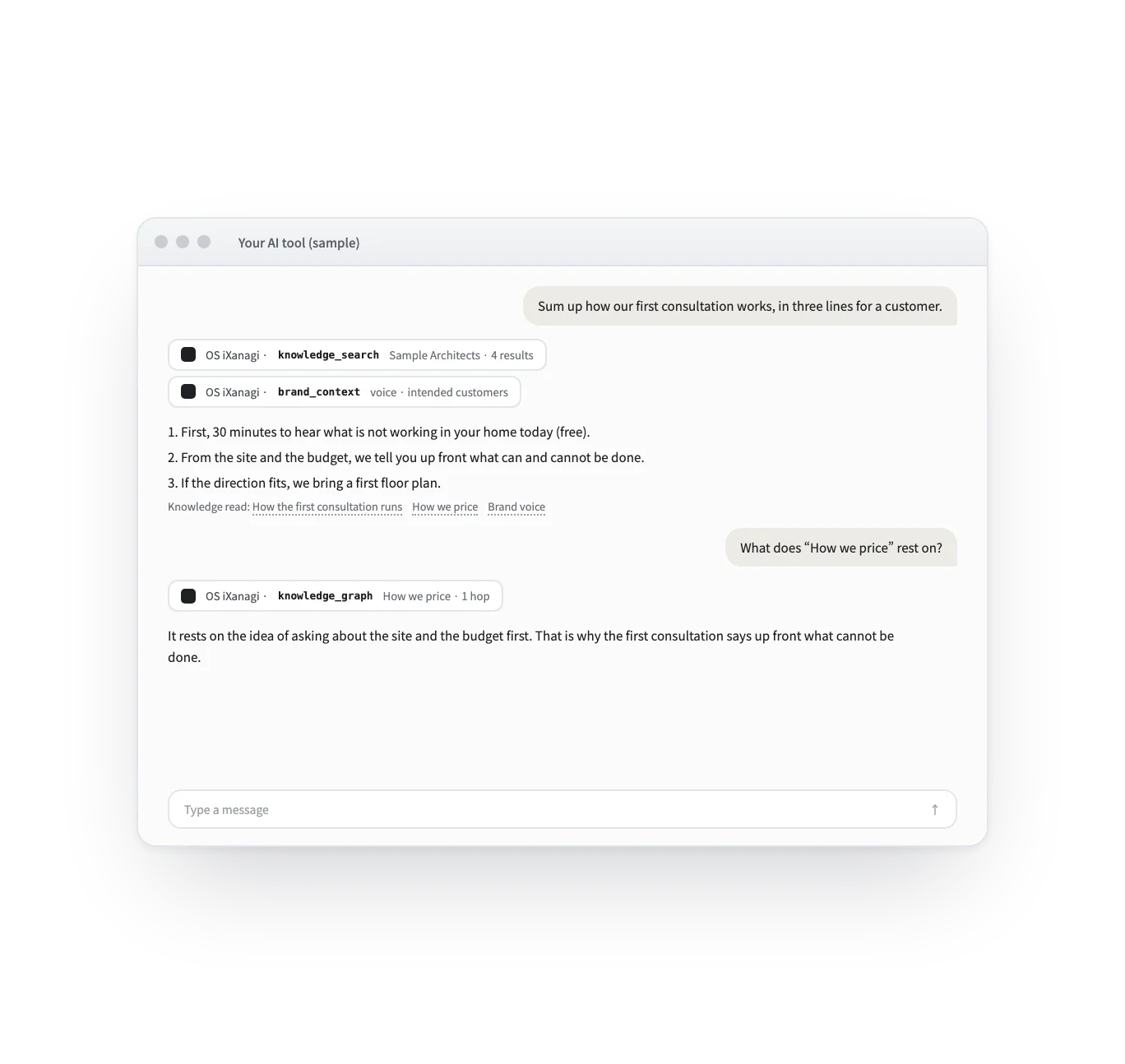
Ask the AI to draft in your company’s terms. It reads your positions and your brand’s voice, instead of you pasting them in.
“How does our first consultation work?” The answer comes from what the company has written down — not from the AI’s guess.
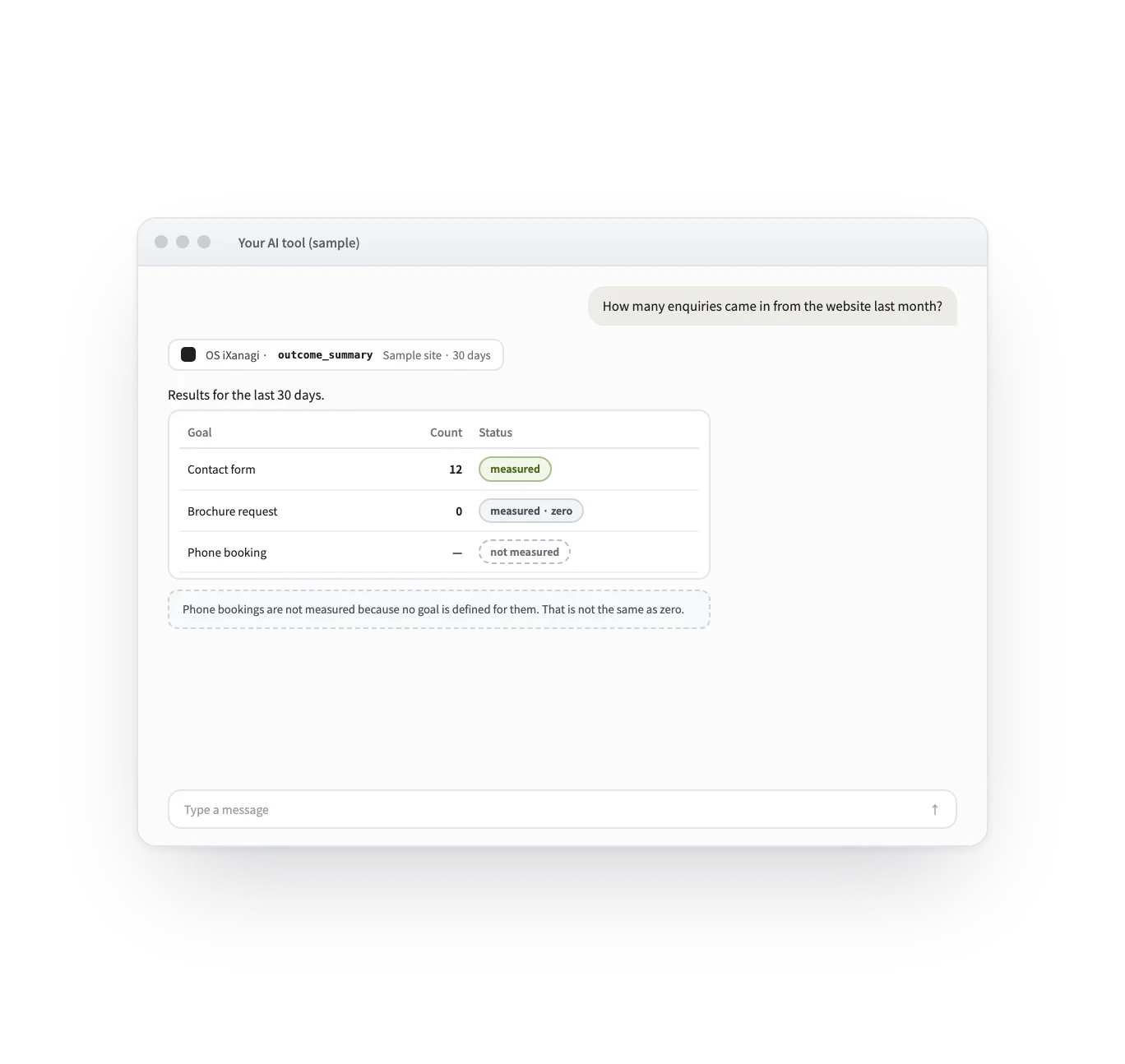
Ask about enquiries without opening the console. What you have not measured is told apart from zero.
Write the same connection into the new tool. Your knowledge does not have to be taught again.
What it does
AI chat and your AI tool
There are two ways to talk to an AI about your company. The AI chat works inside OS iXanagi; this connector is the line your own AI tool connects through. The AI chat opens on the right of the console, and when it wants to change something it asks you first with an action card. Your AI tool, connected here, reads your knowledge where you already work — and only reads.
| The AI chat in OS iXanagi | Your AI tool, connected here | |
|---|---|---|
| In a word | The AI that opens on the right of the console | The line that connects the AI you already use to your company’s knowledge |
| What it does | Look things up, summarise, draft — and propose changes | Read knowledge, brand context, positions, results and growth stage |
| Changes | When it would change something, it asks first with an action card | Nothing can be written — read-only |
| How you start | Open it from the right edge of the console | Write the URL into the tool, then approve on the consent screen |
| AI cost | AI credits | Your AI tool’s own plan. Reading through this connection uses no OS iXanagi AI credits |
What changes
How it connects
Add the connection’s name and URL to your AI tool’s MCP settings.
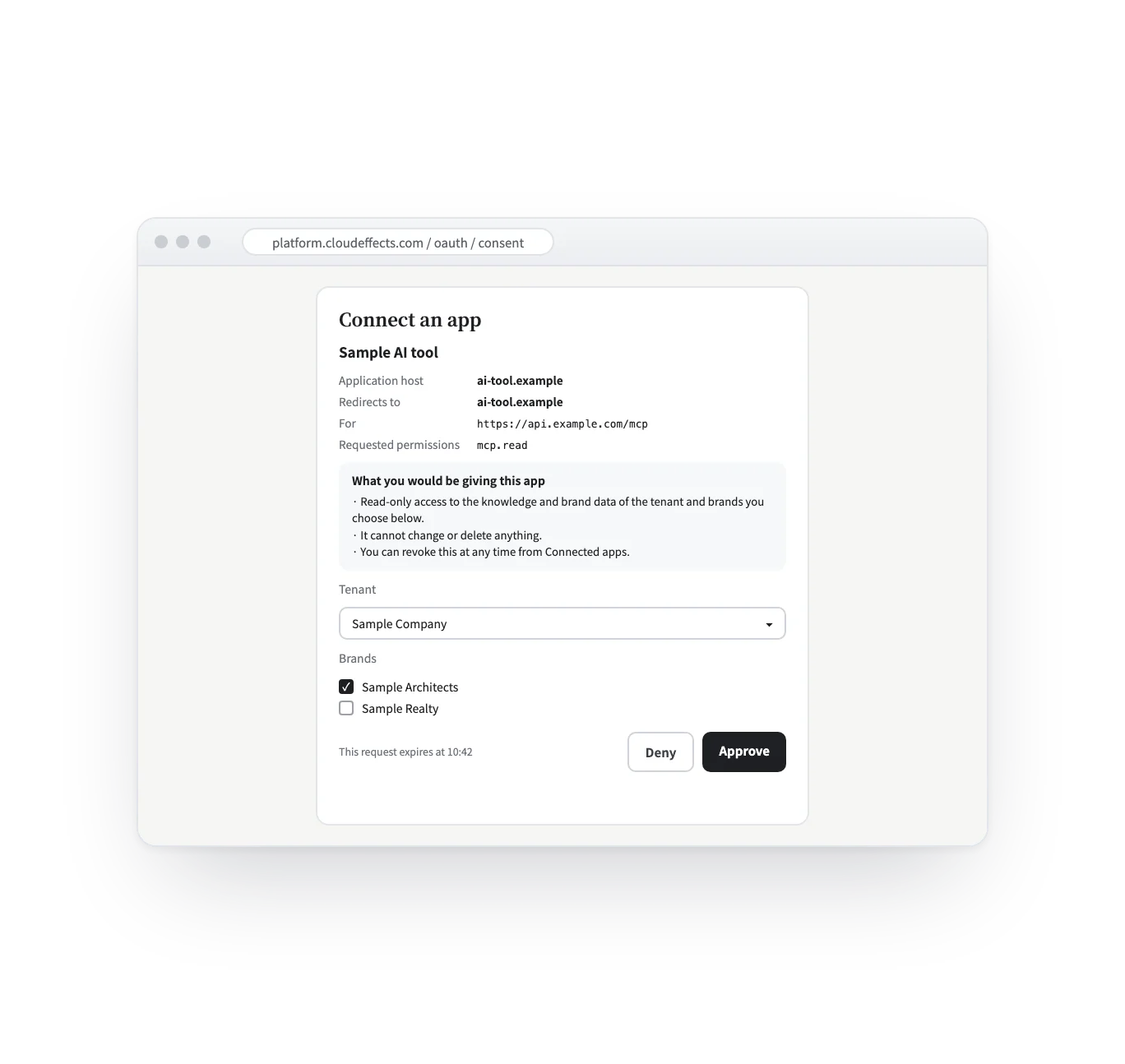
The first time, sign in to OS iXanagi in your browser, choose which brands the AI may read, and consent.
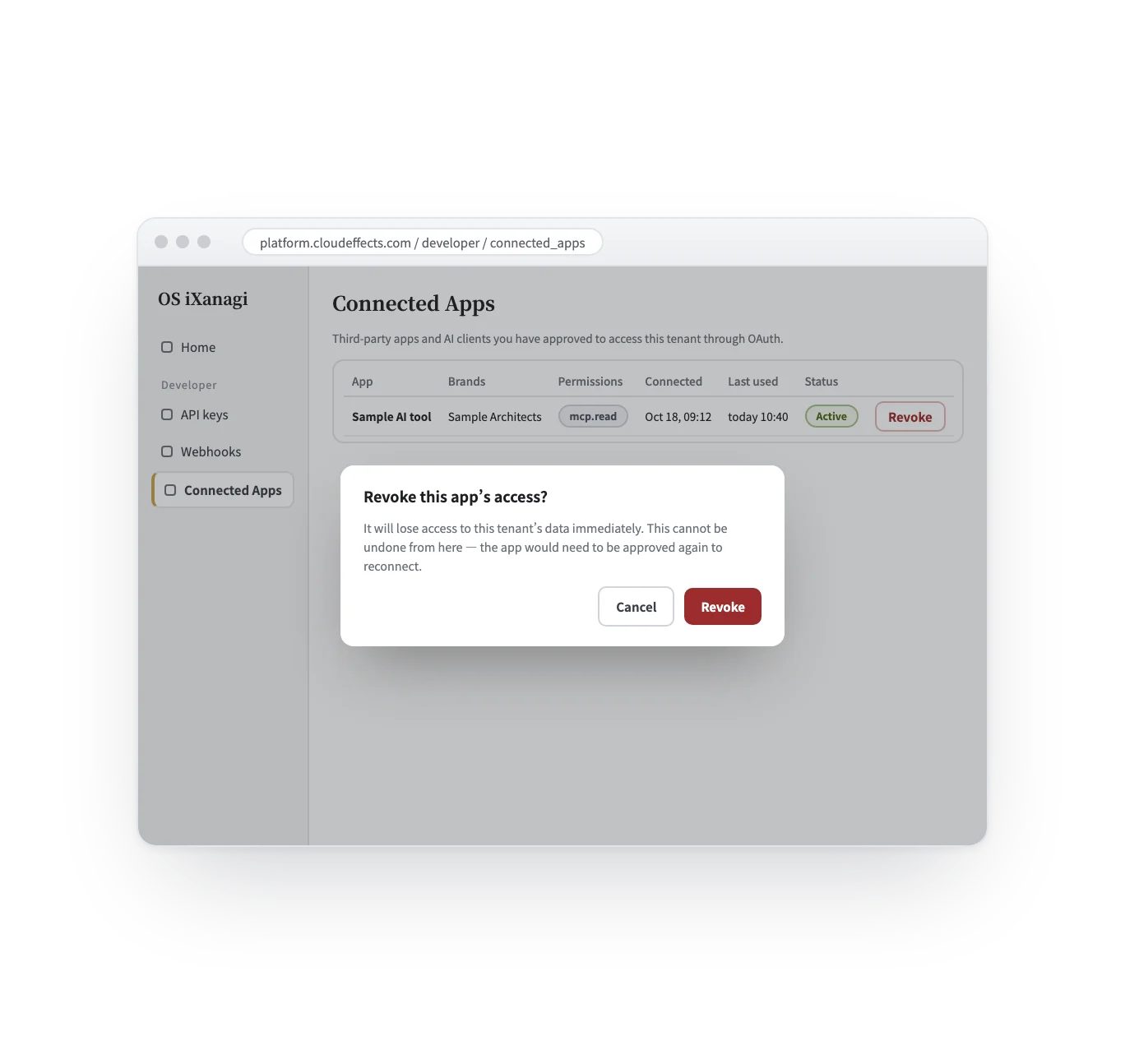
The AI draws on your knowledge when it needs to. You can revoke the permission any time under Connected Apps.
What it needs
Every App comes with the plan. Unless an App is activated, its capabilities cannot be used — from the screen or the API.
Included in the plan.
The AI tool we have connected and checked end to end is Claude Code (as of October 2026). The connection is approved by someone who may issue API keys (with the standard roles, the tenant’s owner and administrators), and an AI tool can never read more than the person who approved it: if that person’s role is lowered, what the AI tool can read narrows at the same time. Revoke it and it stops at once. What the AI tool does with what it read follows that tool’s own terms and settings — choose the brands you let it read with that in mind.
FAQ
No. Only operations declared for reading are offered through this connection; anything else is refused as an operation it does not know. Proposals cannot be sent in either — if they flowed in from outside faster than people can read them, the approval inbox would turn into a rubber stamp.
You choose which brands the AI may read on the consent screen. Searches always run inside one brand, and a brand you did not choose cannot be read. Other companies’ data cannot be read at all.
The connection is approved by someone who may issue API keys — with the standard roles, the tenant’s owner and administrators. What the AI tool may read never goes beyond what that person may see.
Under Developer → Connected Apps, press Revoke and the AI tool loses access immediately. The record that it was approved and revoked stays. To use it again, approve it again from the AI tool.
Only reads that call no AI model are offered through this connection, so it uses no OS iXanagi AI credits. The AI itself runs on your AI tool’s own plan.
Their connectors use the standard sign-in and consent flow (OAuth), which this connection supports. The AI tool we have connected and checked end to end is Claude Code (as of October 2026).
Works well with
Curious? Ask the AI directly — it answers in terms of your business.