
Adding a new product
Open the supplier page and copy name, colours, sizes and prices one by one. 78 entries for 3 colours × 26 sizes.
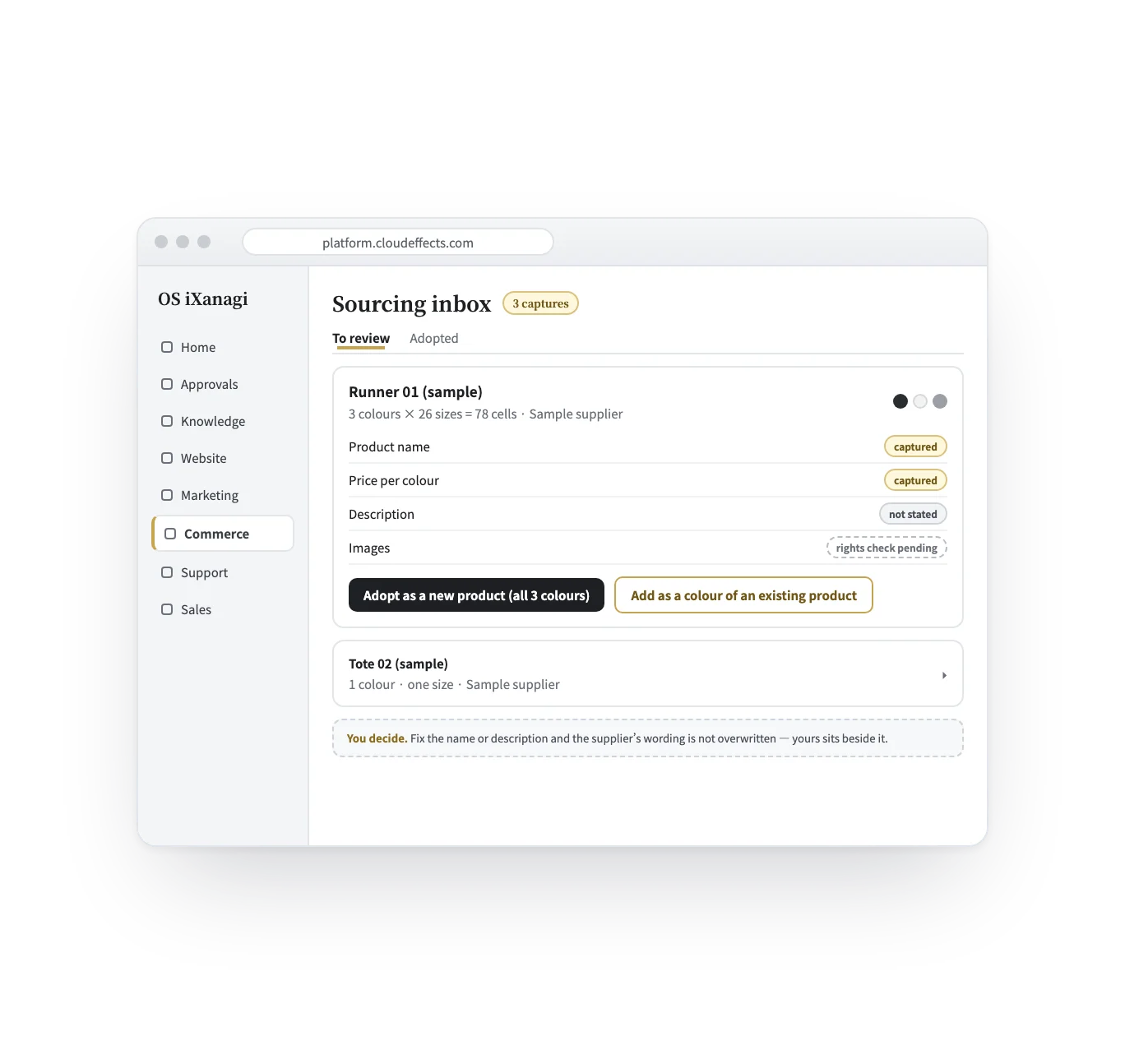
Press once with the page open. Every colour and size comes in with its source; you check and adopt.
Add-on — Supplier watch
Open the supplier page, copy name, price, colour, size. Three colours by 26 sizes is 78 combinations. With the OS iXanagi browser extension, you keep the page open and press one button: every colour and size comes in with its source, and a person decides what becomes a product.
Works · Add-on
How it flows
From the supplier page to a product, in six scenes. The screens are samples; the shops, products and figures are examples.

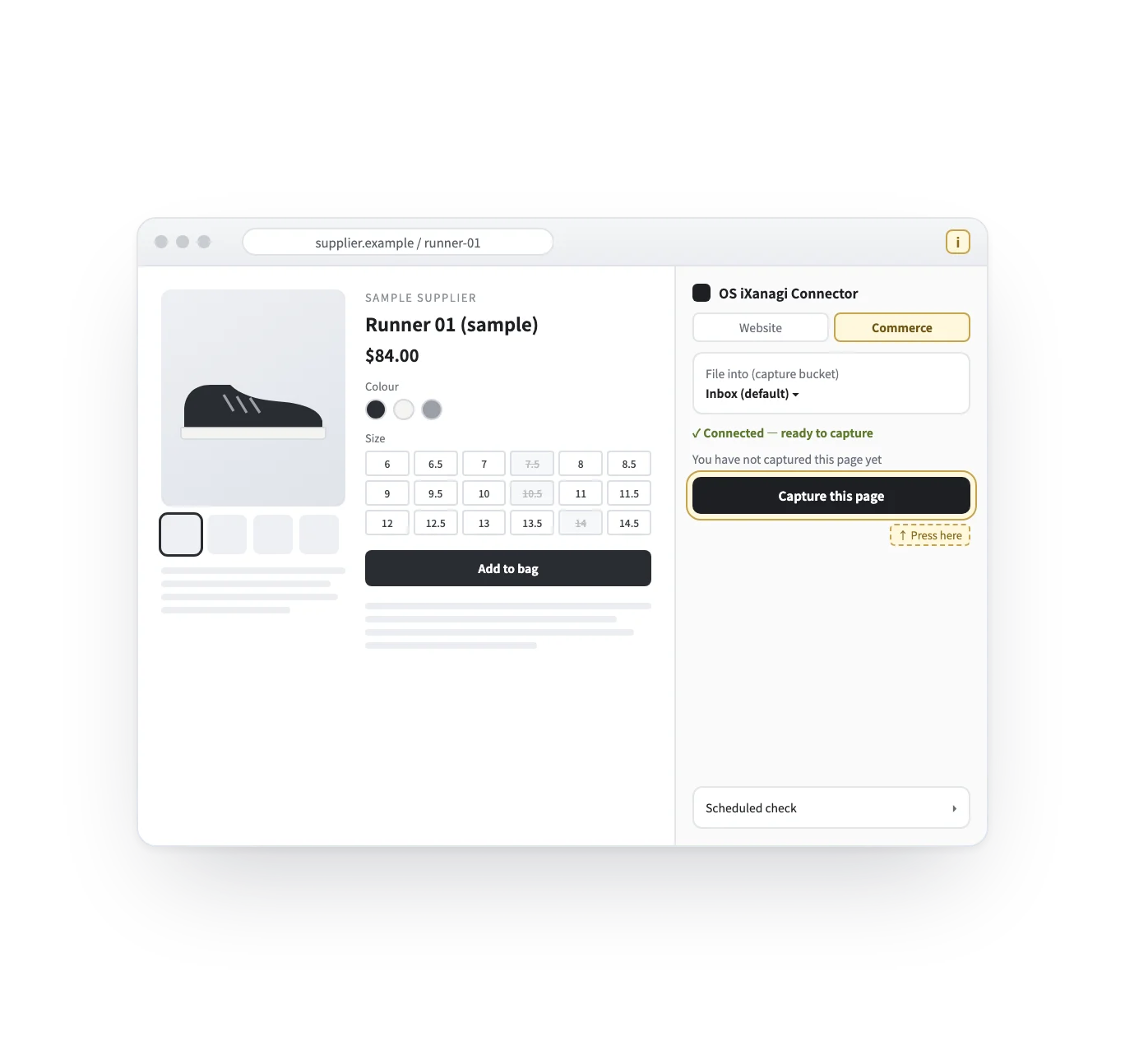
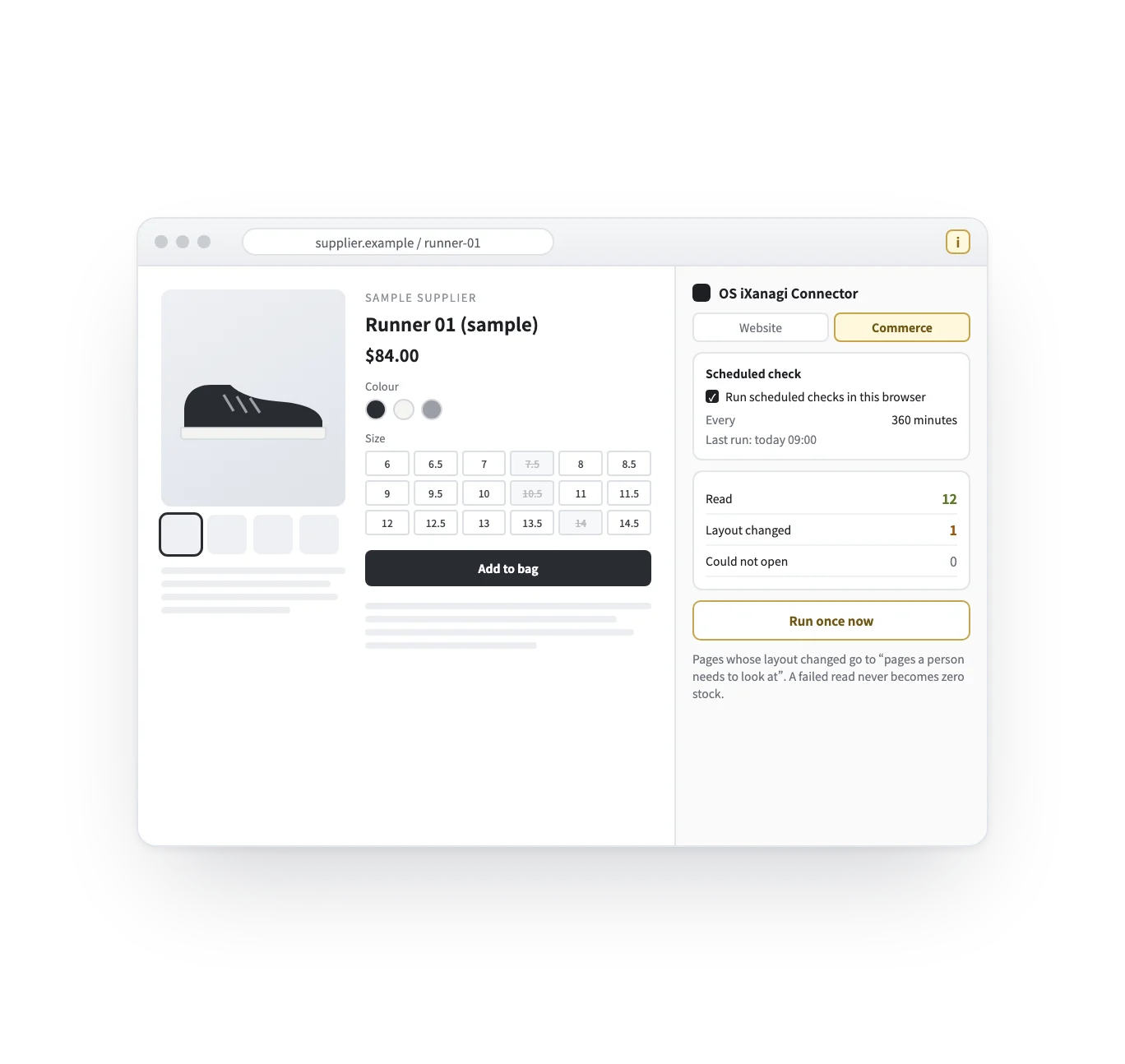
Open the supplier’s product page as usual and press “Capture this page” in the extension’s side panel. Nothing to copy, nothing to paste. The page and the panel shown here are samples.
When you need it
No stock of your own — so the supplier’s page is your stock list.
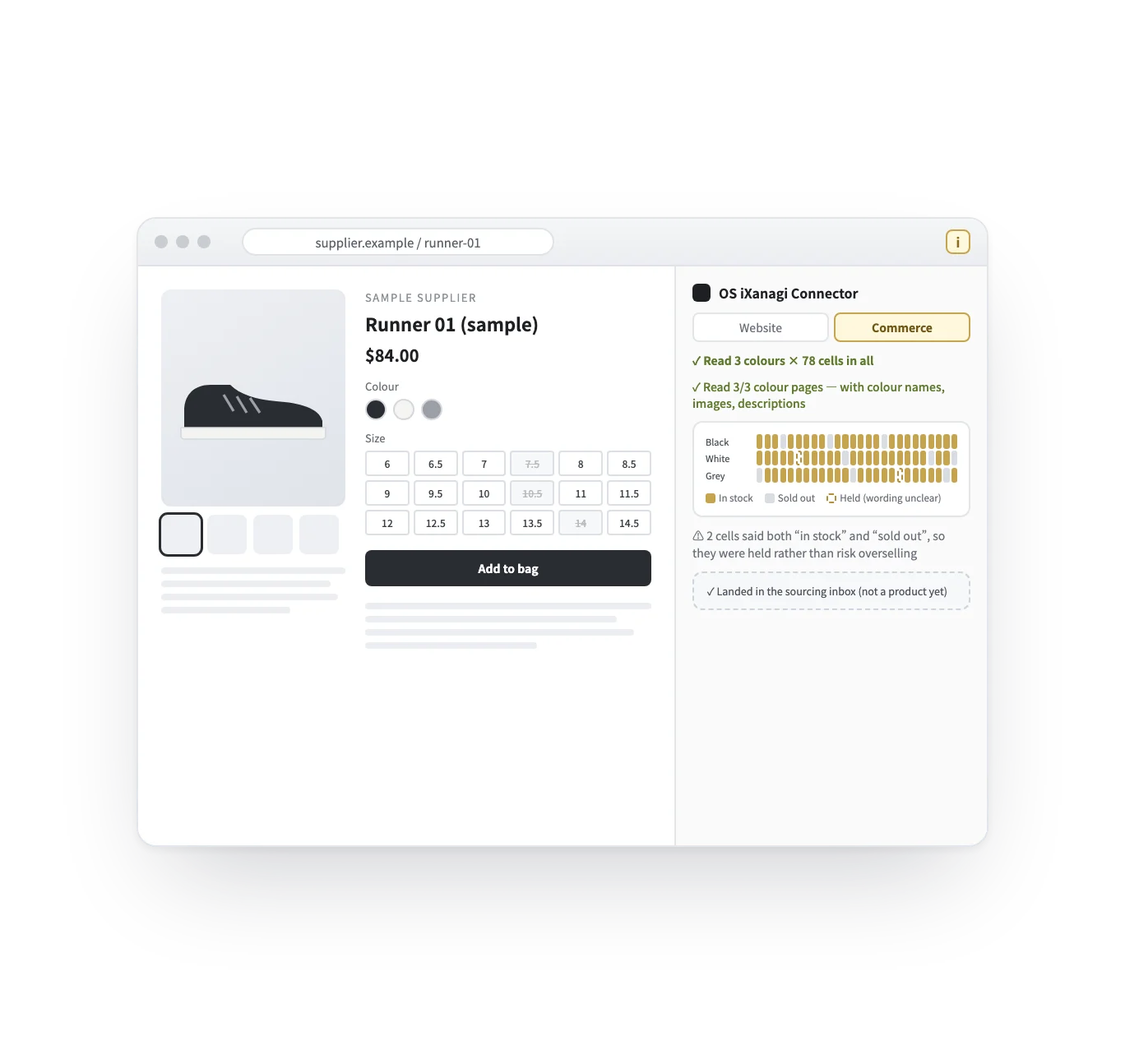
All 78 cells, with colour names and their source, in one capture.
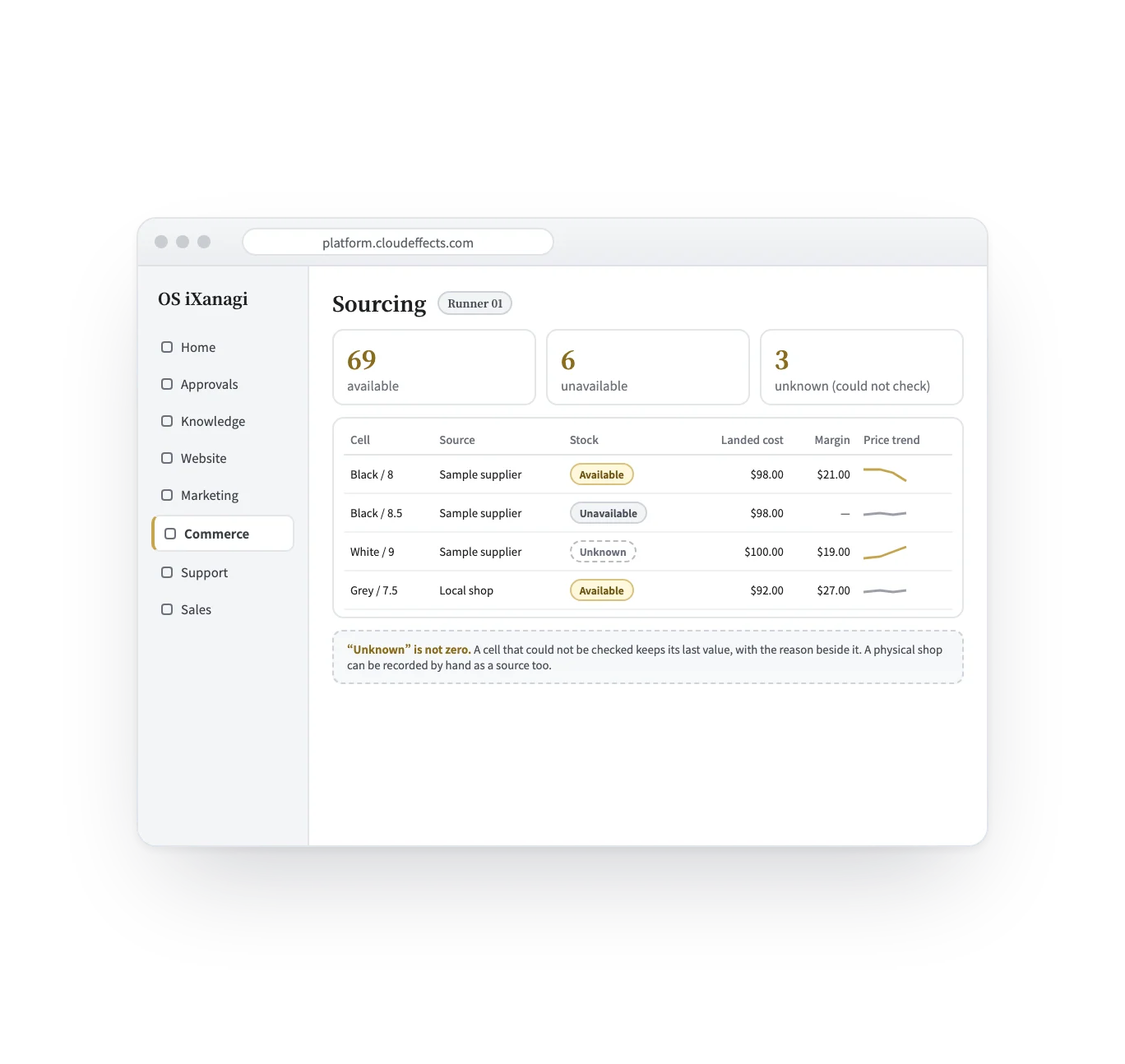
You see it in the cell before you oversell and apologise.
Each cell can have more than one source, and you compare their landed cost.
What it does
Reading fast is the easy part. What matters is never writing something the page did not say.
What changes
Getting set up
Supplier watch is a capability of Commerce. First activate Commerce for your company, then activate “Sourcing” under the brand’s “Add-ons”.
Load the OS iXanagi Connector into Chrome. It opens as a side panel next to the page.
Paste a key limited to capturing, and choose the brand. Chrome asks to allow access to that one server only — not to every site.
Open a product page and press. If you want, turn on scheduled checks for the brand and for this browser.
What it needs
Every App comes with the plan. Unless an App is activated, its capabilities cannot be used — from the screen or the API.
Capturing is one step: open the supplier page and press the button. You can close the browser afterwards. A browser needs to stay open only for scheduled checks, which re-read the pages you captured. They run only while a participating browser is open, and the server never reads supplier pages in its place. Several browsers can take part for one brand: give each browser its own key, and the server hands each page to one browser at a time. If you paste the same key into two browsers, they count as one and may read the same page twice; the extension tells you when that happens. The extension is for Chrome and is loaded in developer mode.
FAQ
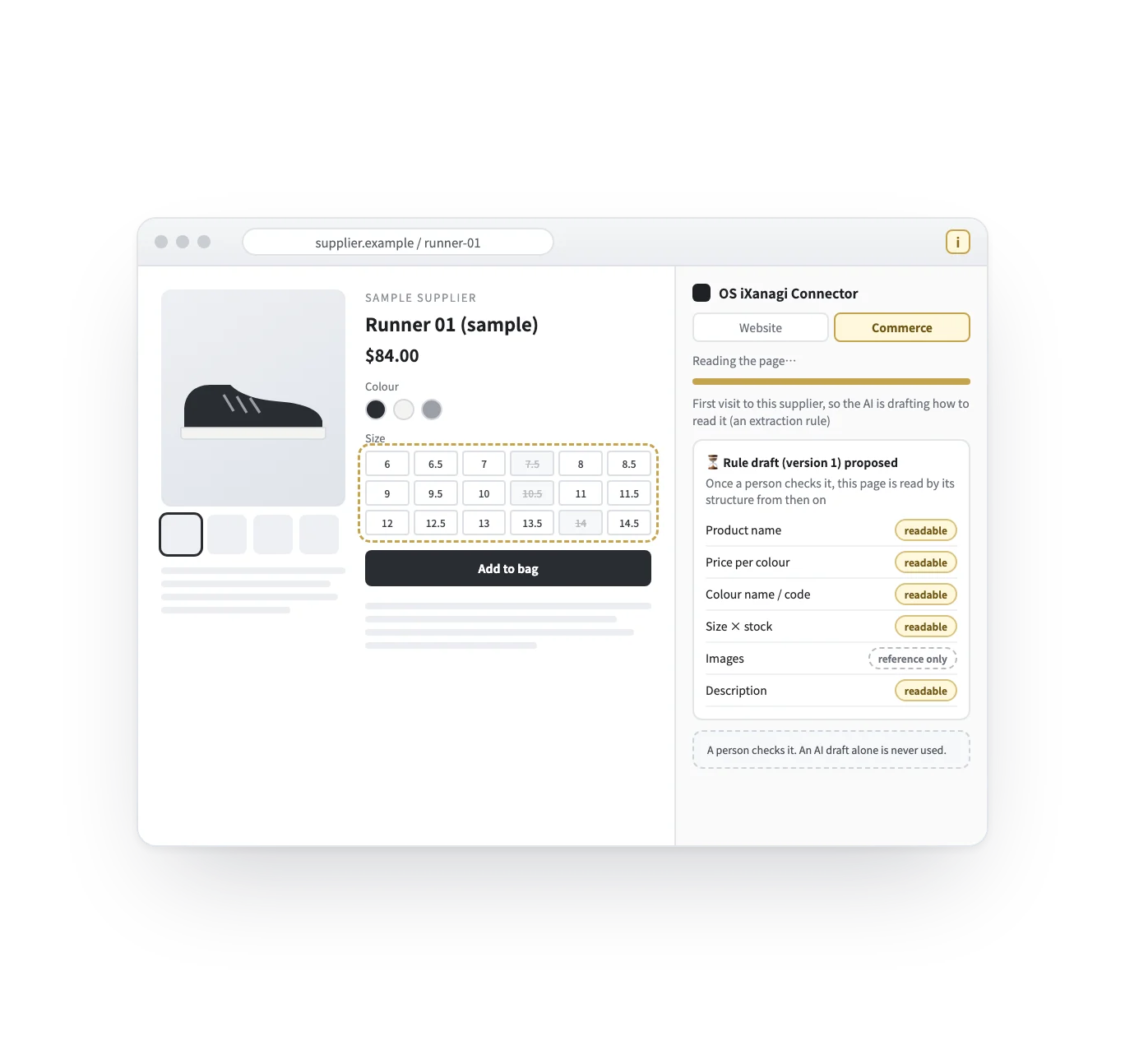
For a supplier it has not read before, the AI drafts how to read the page, and it is used only after a person checks it. If the site’s layout changes later, the page is shown as one a person needs to look at — it is not guessed.
Where a supplier has a stock lookup, Chrome asks your permission once for that supplier. Without it, the extension reads only what is shown on the page you opened.
The system never rules on whether you may use an image. It keeps the image as a reference, shows where it came from, and records who decided to use it.
No. Suppliers you register are kept to your company, and their addresses are stored sealed. Even scheduled checks do not hand them out from the server; only pages your browser has already read are checked again.
A single capture is not affected: it reached the server the moment you pressed the button. Scheduled checks run only while a participating browser is open, so they pause while it is closed. The last reading stays as it was and is treated as out of date; it never turns into zero stock.
Yes. Give each browser its own key. The server hands each supplier page to one browser at a time and holds it for about ten minutes, so the two never read the same page in the same window; if one is closed, the other takes over once that time has passed. Pasting one key into both browsers makes them count as one, and the same page may then be read twice. The extension shows a notice when it sees that.
A physical shop can be a source too. Record what you saw — the price, and whether it was in stock — by hand on the sourcing screen. If you only saw the price, stock is left unrecorded rather than marked sold out.
Works well with
Curious? Ask the AI directly — it answers in terms of your business.